
Auto Test
Automatic test mode can be activated by pressing the [Auto Test] button (the play button at the top right of the testing menu page) or by using the a or A hotkey. In automatic mode, the test will advance to the next test after the user selects Pass or Fail, without the need to return to the testing menu each time. This is significantly faster than manual one-to-one testing and helps to avoid the error of missing a test.
Once automatic mode is activated, the tests will be run sequentially, starting with the keyboard test to the GPS test, and finally submitting data.
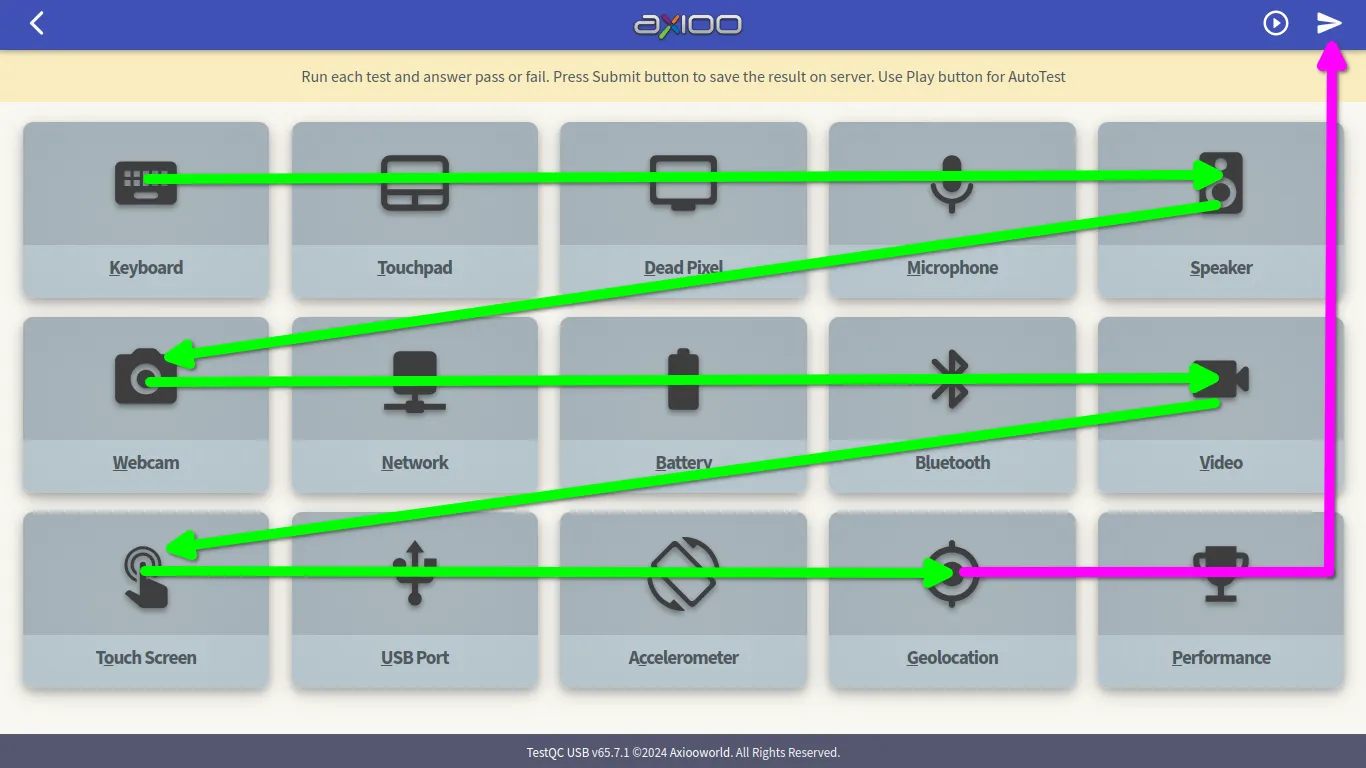
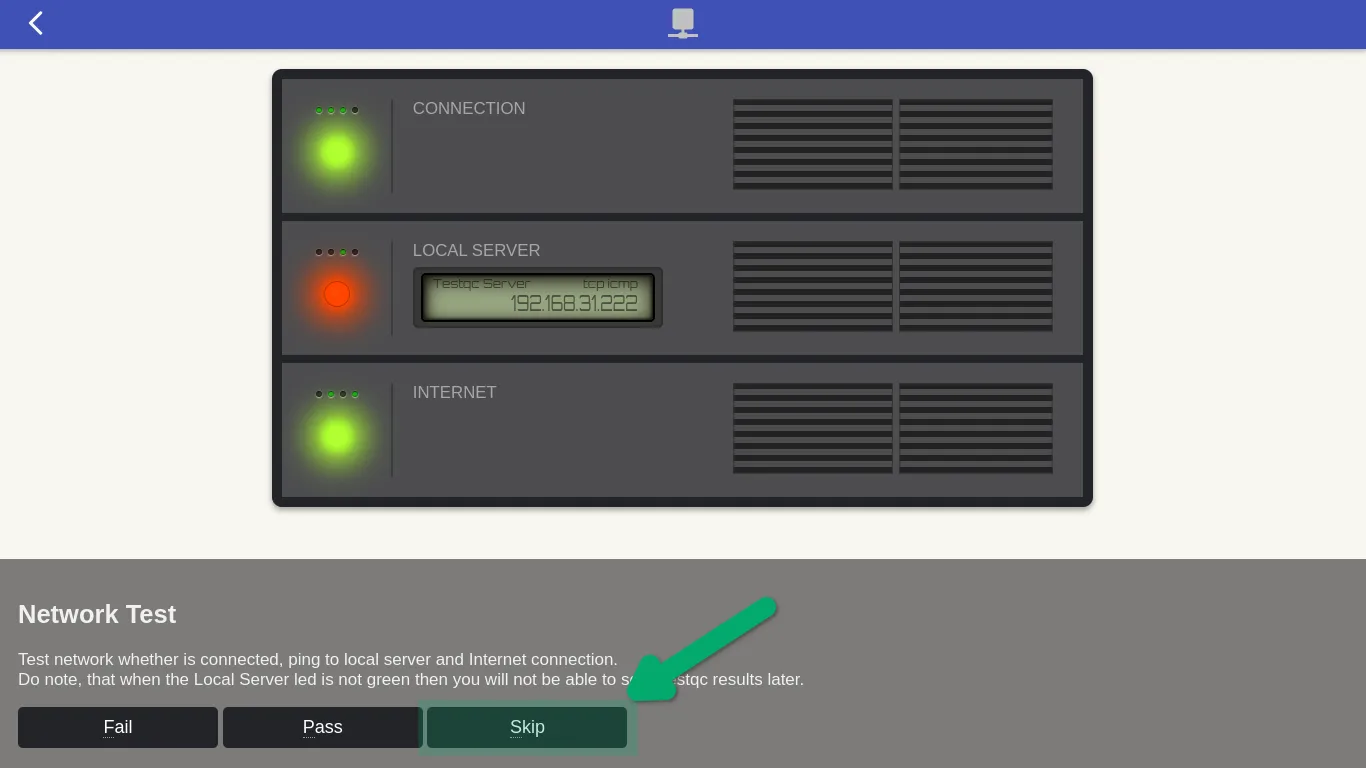
In this automatic mode, on every test page there will be an additional button, as a mechanism to skip the test if there is no available component to test on the device.
Canceling AutoTest
Users can cancel the AutoTest mode at any time by pressing the back button on any test page. The test results will be safely stored, but if the user restarts the AutoTest mode, the test will restart from the beginning, at test number 1, which is the keyboard test.