
Submit Data
Sends data to the log server after all tests are complete. The data on the server will be further analyzed to improve production output performance and overall quality control.
- USB barcode / qrcode scanner.
- QRCode Serial Number sticker.
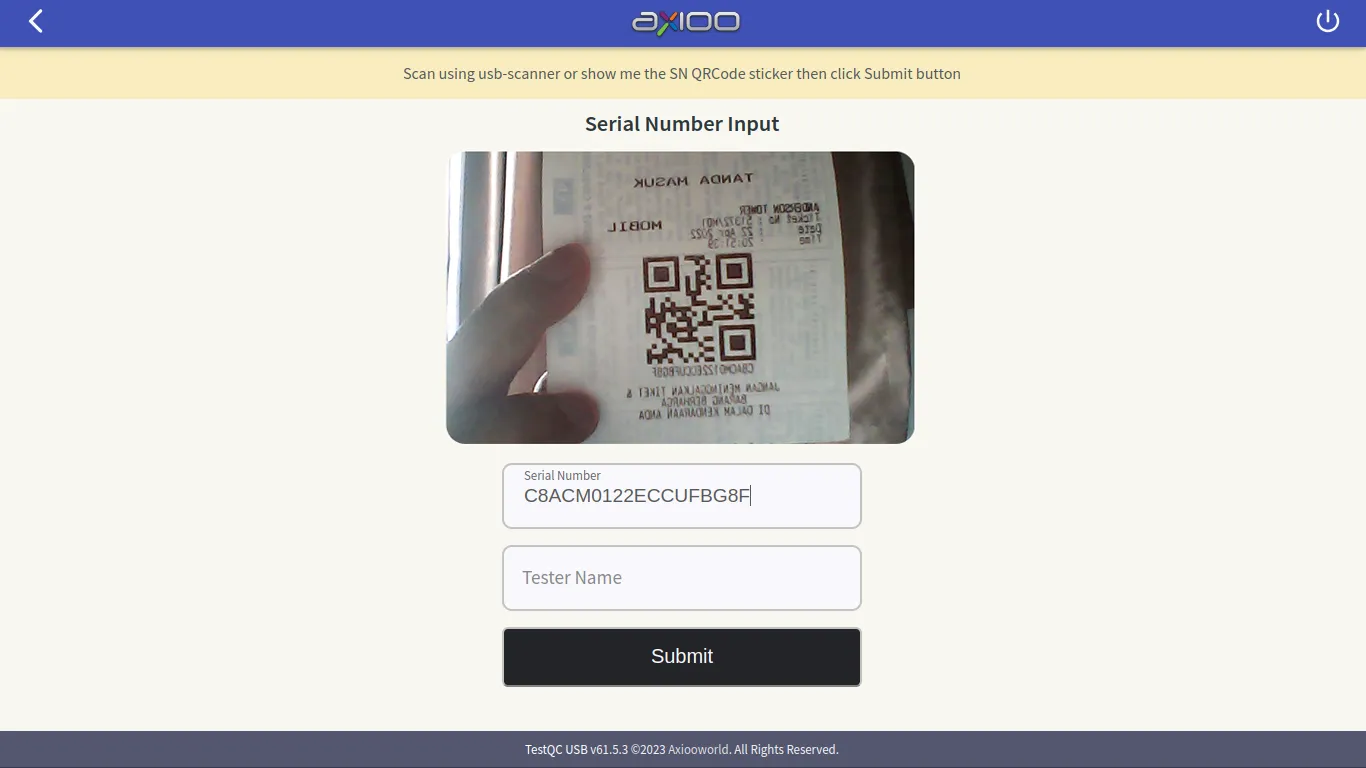
In this step, all the testing process should have been completed and the operator must enter the serial number of the device that has been tested and save the test data to the server log.
There are several ways to enter the serial number:
- Using a usb barcode scanner that is plugged into the device
- Using QRCode serial number sticker and show it to webcam (like above picture)
- Manually typing the device serial number (not recommended, humans are the weakest link when it comes to security and repetition)
Please choose which one is best for you.
To submit data to the server, click the Submit button after entering the serial number in the input serial number field and your name as the tester in the tester name field. The system will subsequently confirm whether the data has been sent to the server successfully.
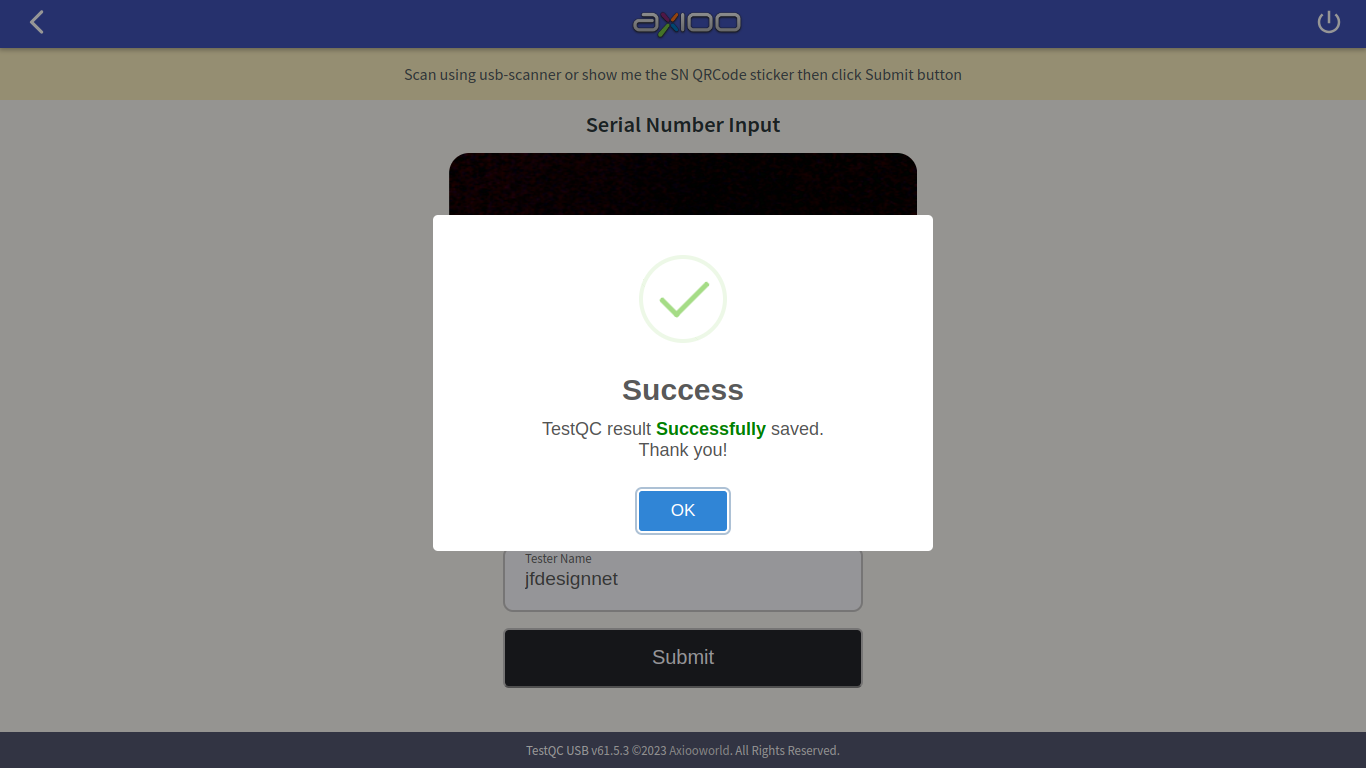
If the data is not submitted successfully, the system will generate an error message. Please contact your system administrator for assistance if you receive an error message.
TestQC has been completed successfully, now move on and test the next device. Happy Testing!